
Bitpanda export to CSV step by step
Which file to pick, how to get it out of Bitpanda, and what you can do with it next.
How to export from Bitpanda
-
Log in to Bitpanda on the web and open the profile menu in the top-right corner.
-
Select History to see every trade, transfer and reward.
-
Click the export icon and choose CSV.
-
Upload the file to your portfolio in Stonksfolio.
What to know about the Bitpanda export
One file for everything
The history export lists trades, deposits, withdrawals, transfers and staking rewards, for crypto and for stocks and ETFs.
Staking shows up twice
Moving coins into staking appears as a pair of transfers. Stonksfolio recognises the pair and doesn't count it as a sale.
Rewards have a market price
Each staking reward row carries the price on the day, which becomes its cost basis.
What to do with the file
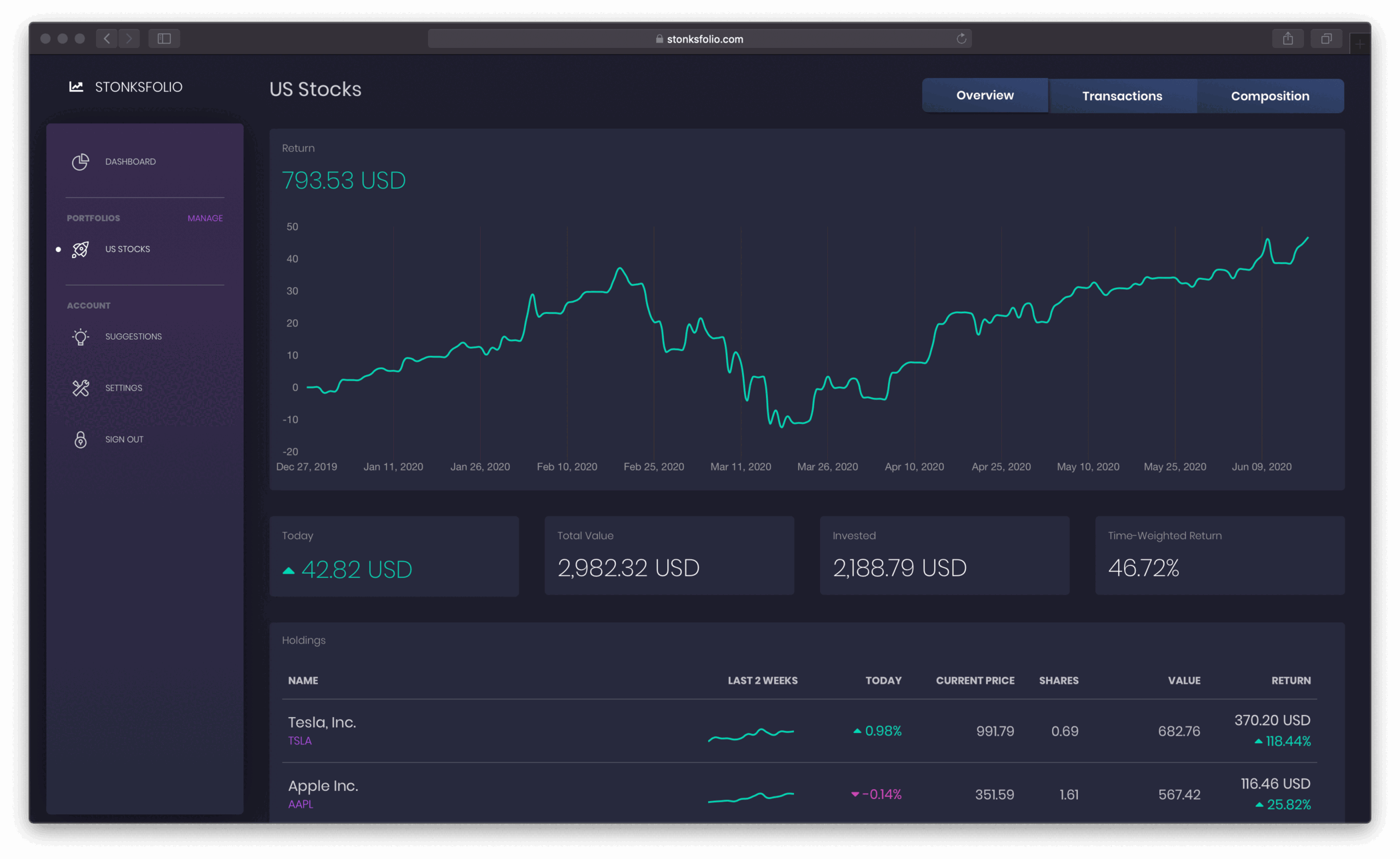
The file lists what you bought and sold. Upload it to Stonksfolio to see how that money did: your time-weighted return, your net return in money, dividends and allocation, next to every other broker you use.
Questions
How do I export my Bitpanda history?
On the website, open the profile menu, go to History, click the export icon and choose CSV.
Does the export include stocks and ETFs?
Yes. Listed securities are in the same file as your crypto.
Are staking rewards in the export?
Yes, each with the market price on the day you received it.
Are deposits imported into Stonksfolio?
No. Deposits, withdrawals and internal transfers are skipped. They don't change what you own.
Upload your Bitpanda file and see your return
It's free to start and you don't need a credit card.