
Trade Republic export to CSV step by step
Which file to pick, how to get it out of Trade Republic, and what you can do with it next.
How to export from Trade Republic
-
In the Trade Republic app, tap your profile in the bottom-right corner.
-
Open Statements & transaction export, then choose Transaction export.
-
Pick CSV export for tracking tools, not the PDF or the tax tool export.
-
Choose any period. There is no twelve-month limit.
-
Upload the file under Transactions, then again under Payments for dividends and interest.
What to know about the Trade Republic export
The export for tracking tools
Trade Republic offers several exports. The CSV for tracking tools has one row per transaction, which other apps can read. The PDF and the tax tool export can't be imported.
No twelve-month limit
One export can cover everything since you opened the account.
Your cash account is in it too
Card payments, salary and transfers are in the file as well. Stonksfolio skips them because they aren't investments.
What to do with the file
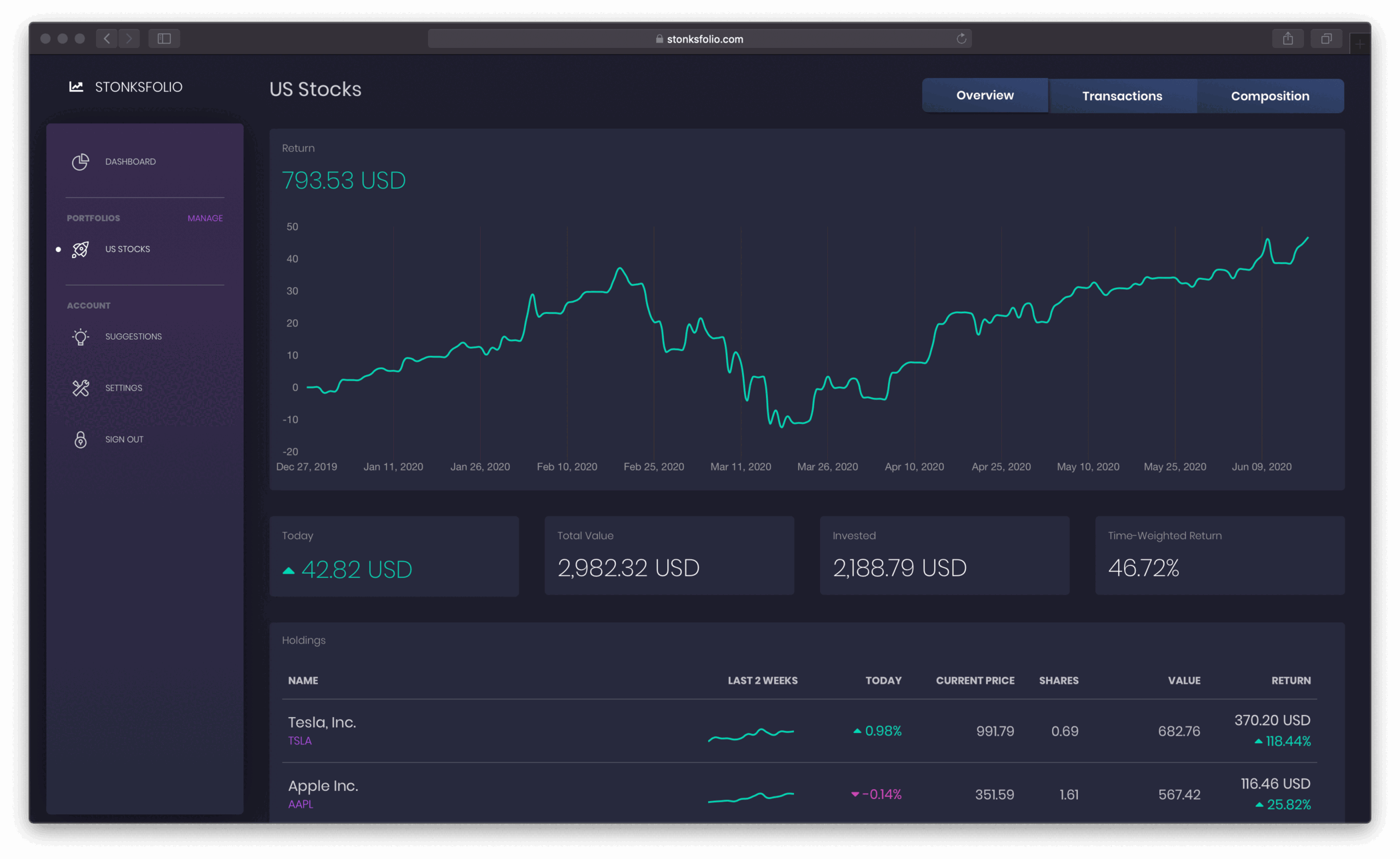
The file lists what you bought and sold. Upload it to Stonksfolio to see how that money did: your time-weighted return, your net return in money, dividends and allocation, next to every other broker you use.
Questions
How do I export my Trade Republic transactions?
Profile → Statements & transaction export → Transaction export, then pick the CSV export for tracking tools.
Are savings plan executions in the export?
Yes. Every execution is a buy in the file.
Does the export include dividends and interest?
Yes, with the tax withheld. Upload the same file under Payments in Stonksfolio to bring them in.
Can I export more than a year at once?
Yes. There is no twelve-month limit on this export.
Upload your Trade Republic file and see your return
It's free to start and you don't need a credit card.