Trading 212
Import your trades from a Trading 212 CSV exportOverview
Trading 212 doesn't let other apps read your account, so the import works with files. You export your history from the Trading 212 app as CSV and upload it to your portfolio. Stonksfolio reads the buys and sells, shows them to you for review and adds the ones you keep.
You can upload the same file again later, or a file that overlaps an earlier one. Trades that are already in the portfolio are skipped.
Step 1: Export your history from Trading 212
-
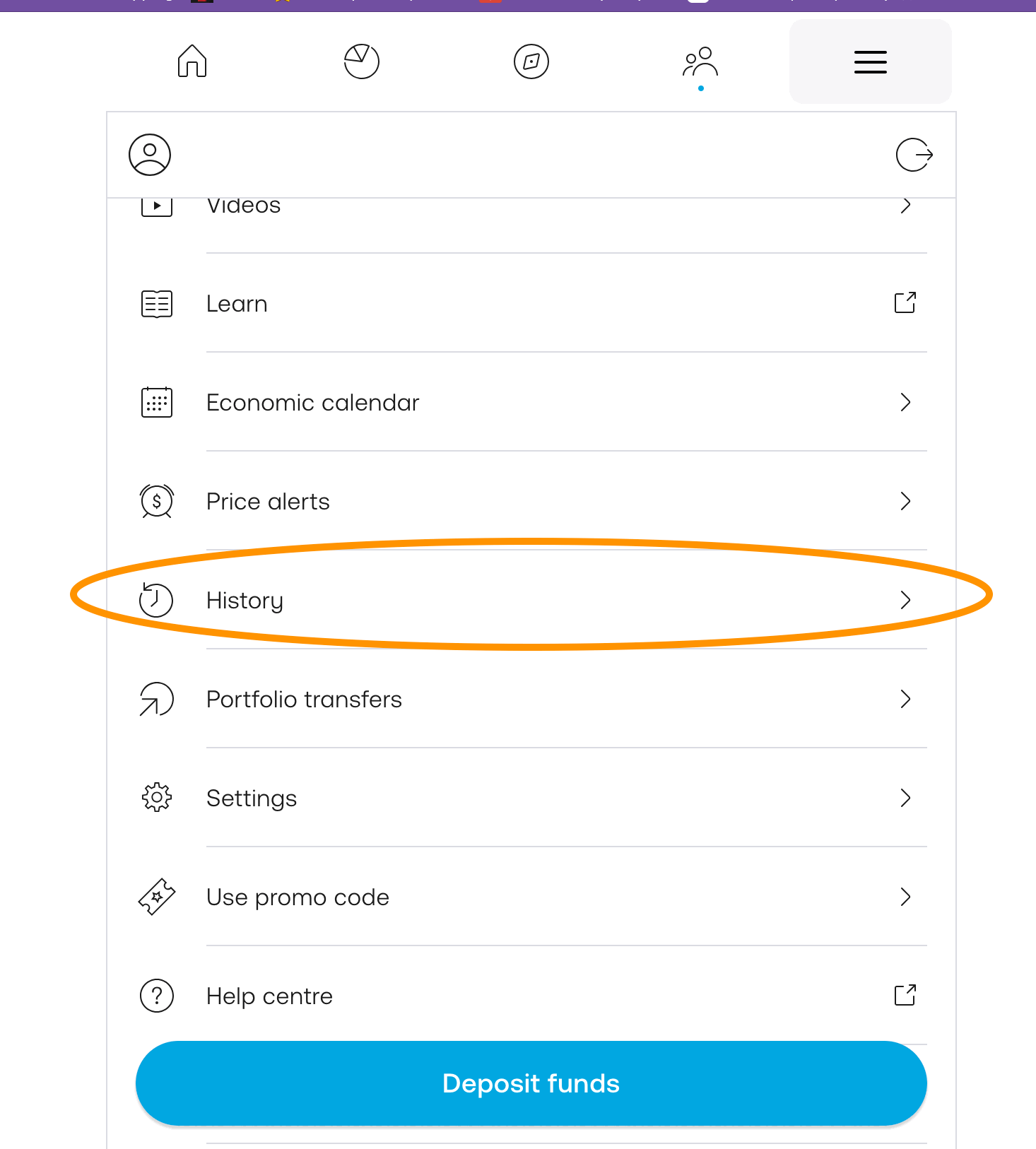
Open the ☰ menu in the Trading 212 app and tap History.
-
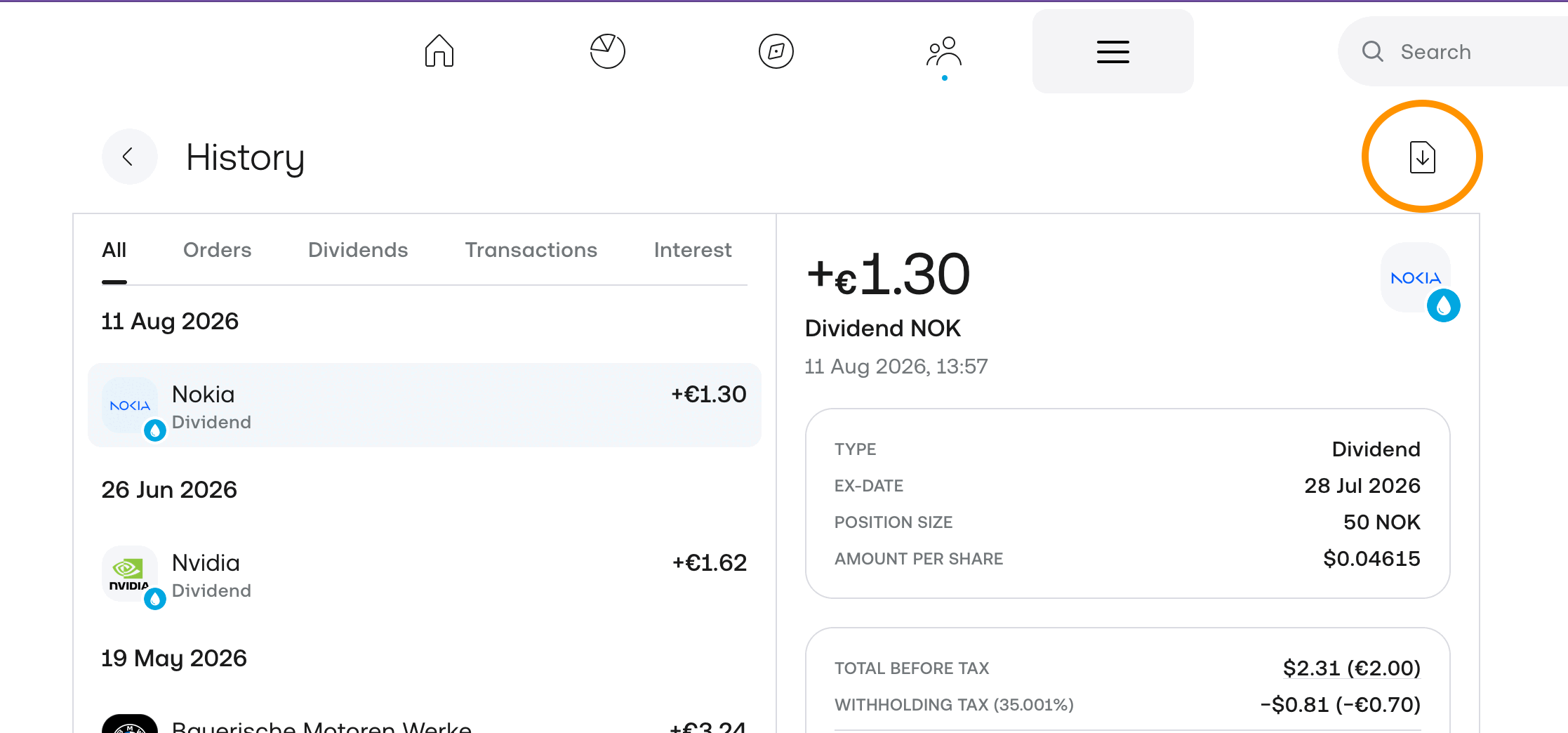
Tap the download icon in the top right corner of the History page.
-
Pick the time frame, leave every data type checked and tap Export CSV.
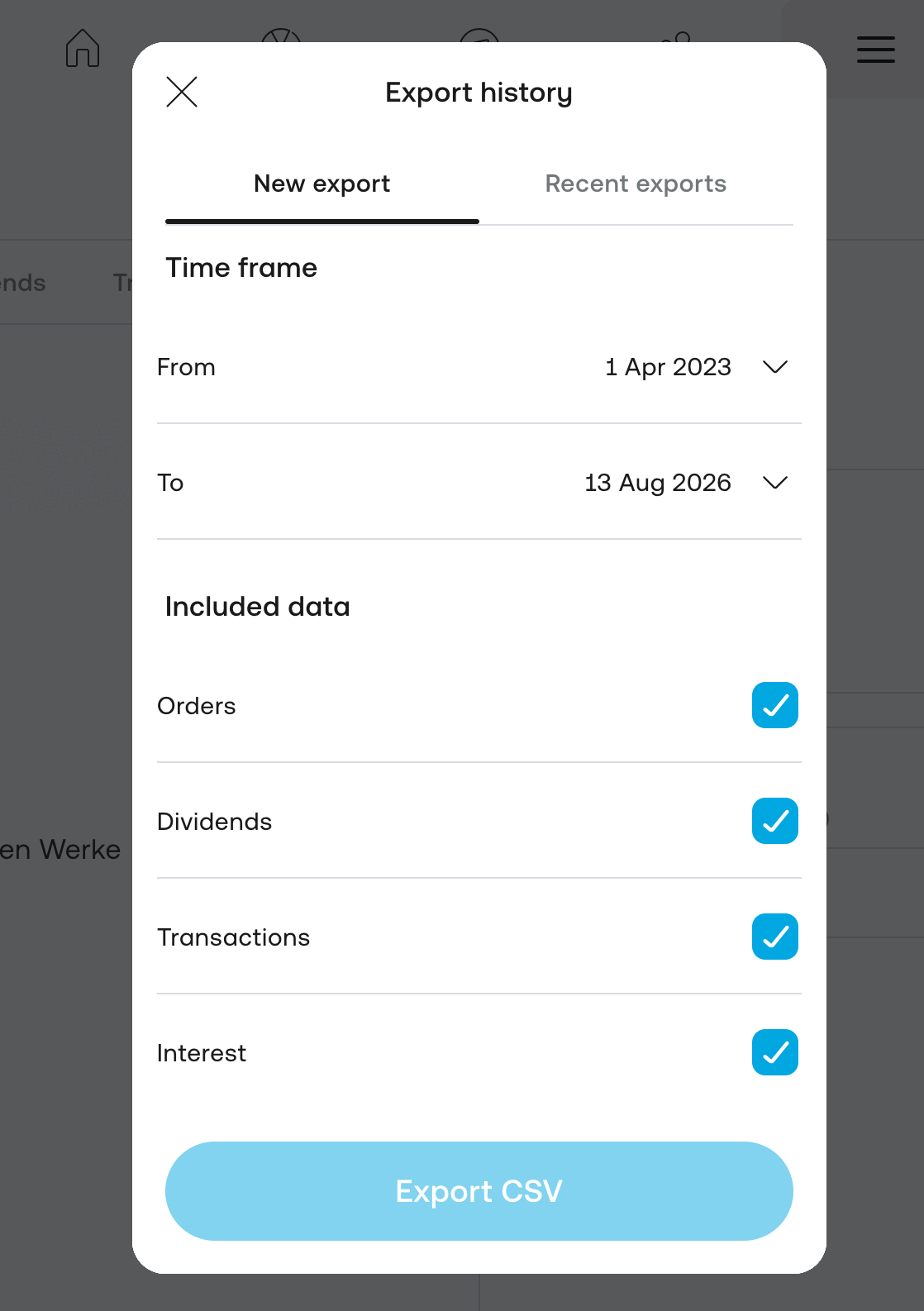



If you have traded for longer, export one file per year and upload each of them. The order doesn't matter.
Step 2: Upload the file
- Open your portfolio in Stonksfolio and go to Transactions.
- Click Import CSV.
- Pick Trading212 in the row of brokers at the top, if it isn't already selected.
- Drop the CSV into the box, or click it to browse, then click Import transactions.
Step 3: Review and import
Before anything is saved, Stonksfolio shows what it found in three lists:
-
New
Trades that will be added. All of them are ticked; untick any you don't want, then click Import.
-
Already imported
Trades from an earlier upload. They are left alone.
-
Invalid
Trades that can't be imported, each with the reason. See below.
Dividends and deposits
The trade import reads only buys and sells. To add dividends, deposits, withdrawals and fees, go to Transactions → Payments, click Import CSV and upload a file in this format:
Date,Type,Amount,Symbol,ISIN
2024-01-15,Funding,500
2024-03-20,Dividend,4.12,VWRL,IE00B3RBWM25
2024-06-30,Withdrawal,200
Type is one of Funding, Dividend, Withdrawal or Fee. Symbol and ISIN are only needed for dividends; either one is enough. You can also add payments one by one with Add payment.